How to Add Text to a Photo on Your Phone
Published
You probably already have a tool that puts words on a photo. On iPhone it is Markup in the Photos app. On Android it is Markup in Google Photos. The steps below follow Apple's and Google's help pages. Button names change between iOS versions. For one job, a top-and-bottom meme caption on a selfie changed by an AI effect, the ShowMeme meme generator is quicker. It works only on pictures made with a ShowMeme effect.
Add text on iPhone with Markup
Apple's iPhone User Guide describes these steps. Names of buttons differ a little between iOS versions, so look for the closest match.
- Open the Photos app and tap a photo.
- Tap Edit, then tap Markup.
- In the Markup toolbar, open the menu that adds shapes, text and your signature, and choose the text option.
- Tap the text box and type.
- Use the text tools to set the font, size and color.
- Tap outside the text box when the text is ready.
- Tap Done to save.
To get rid of a text box, select it and delete it. The same menu cuts, copies and duplicates. The add menu also holds stickers, shapes and your signature, so Markup handles a name, a date, a note or an arrow on any photo in your library.
While you edit, Undo and Redo sit at the top of the screen. After you save, you can still go back. Open the photo, tap Edit, then Revert, then confirm with Revert to Original.
Add text on Android with Google Photos
Google's help page for Android lists these steps.
- Open the Google Photos app and open your photo.
- At the bottom, tap Edit, then Markup. If Markup isn't there, tap Edit, then Tools, then Markup.
- Tap Text and type.
- Swipe through the fonts, set the alignment, and add a background fill or an outline.
- Touch and hold the text box, then drag it into place.
- Tap the checkmark when you finish.
- Tap Save or Save as copy.
Pick the save option with care. Save updates the original photo, and you can get the old version back later with Edit, then Revert. Save as copy makes a new photo and keeps the original untouched. Google notes that you can't undo or adjust the edits inside a copy.
Two limits come from the same page. Google Photos has to be on your phone, so install it first if it's missing. On Android 10 or lower the editor offers limited functions, such as a simple crop or rotate, so you may not find Markup there. Your phone maker's gallery app may have its own text tool.
Which way fits which job
| Way | What you set | Good for |
|---|---|---|
| iPhone Markup | Font, size, color | A name, a date, a note or a signature on any photo |
| Google Photos Markup | Font, alignment, background fill, outline, position | The same jobs on Android, and outlined text over a busy background |
| ShowMeme meme editor | Top line, bottom line, size S, M or L | A meme caption on a picture made with an AI effect |
A meme caption here means white capitals with a dark outline, centered at the top and at the bottom of the picture. You can get close in Markup by typing in capitals and placing the text yourself. Google Photos has an outline option. Either way, you place and style the text by hand for every picture.
When the ShowMeme meme editor is easier
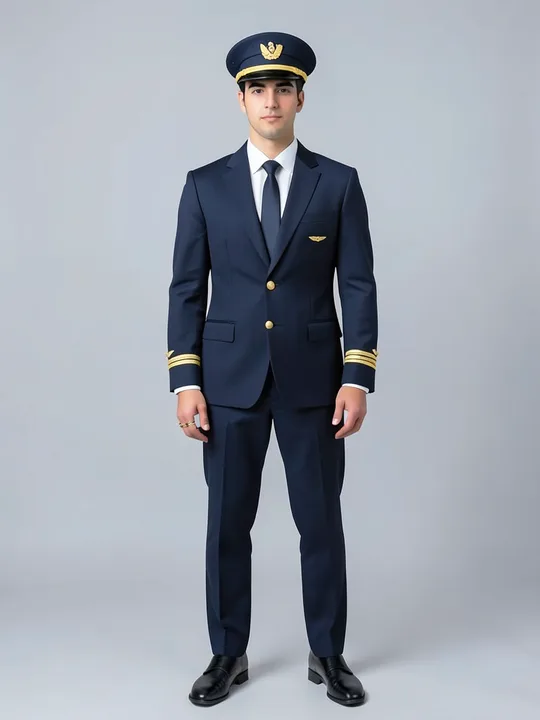
The editor is easier when the picture is half of the joke, say your selfie turned into a mummy or a pilot with one line on top and one at the bottom. It runs on the site, no app needed.
- Open the meme generator and tap Make a meme from a photo.
- Upload a selfie or a full-body photo.
- Tap an effect. The generator page suggests Mummy and Pilot. The effects list has the rest, in categories such as Horror and Jobs.
- Under your result, tap Make a meme.
- Type the top and bottom lines, then pick size S, M or L.
- Tap Done, then Share or Save.
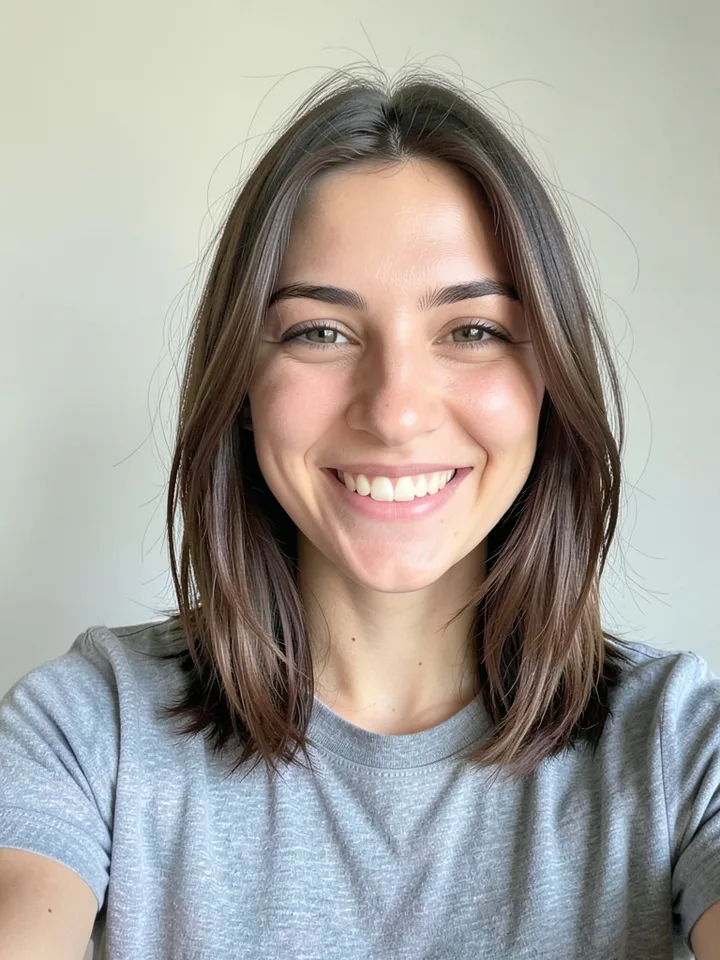
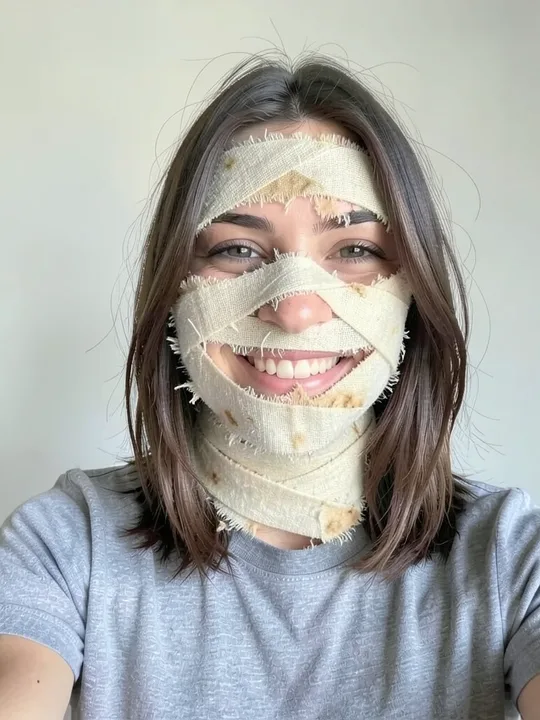
The editor does the styling. It turns your words into capitals, draws them white with a dark outline and centers them. A long line wraps onto as many as three lines, and if it still doesn't fit, the letters shrink until it does, so no word gets cut. The preview redraws while you type. The bottom line stops above the small showmeme.app mark that free results carry. Arabic and Hebrew captions run right to left.
The top and the bottom caption take up to 80 characters each. The caption is drawn on your device and costs nothing, and Save gives you a JPEG at the same pixel size as the result. Your words stay on your device unless you add the meme to the Top list. Then the caption goes to our server, passes a text check, and the meme stays public until you take it down.
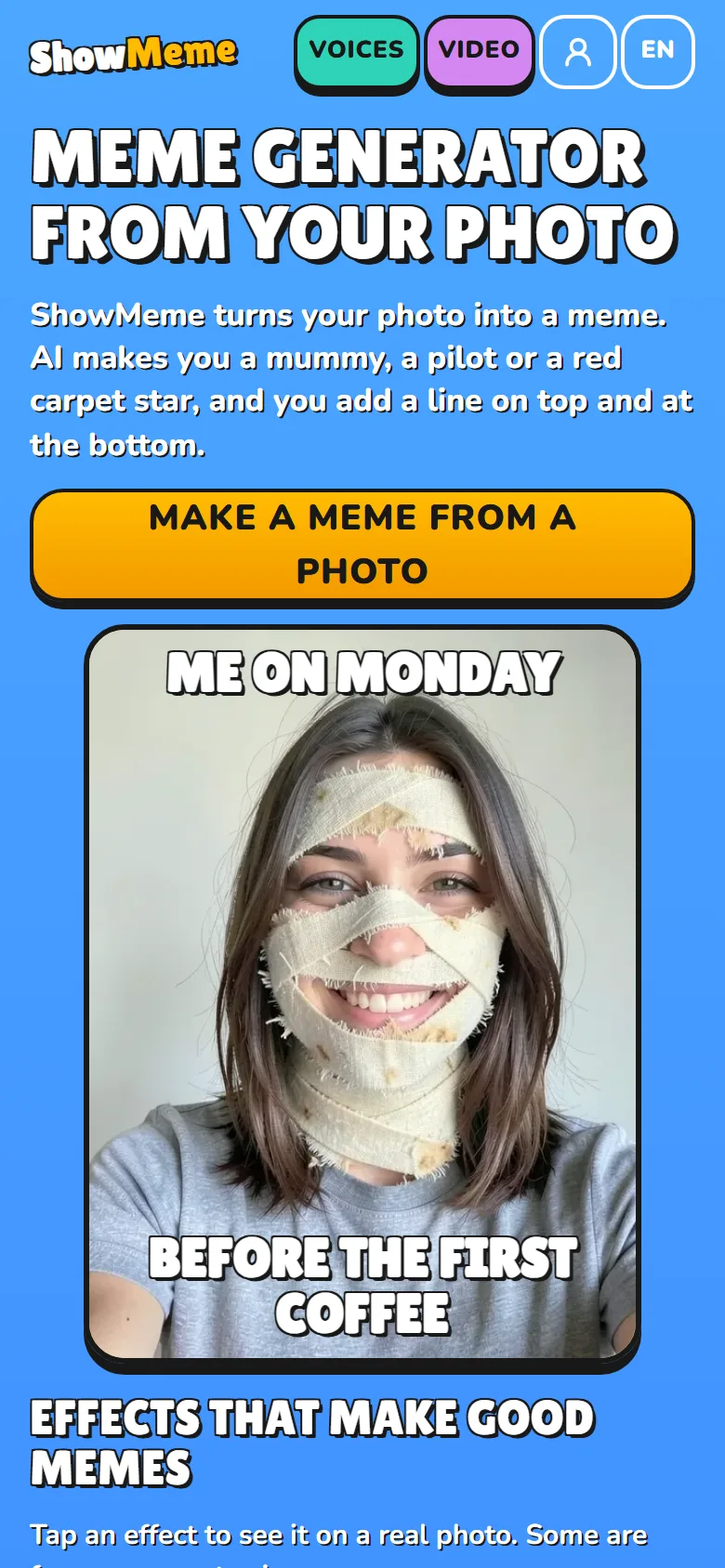
The sample on the generator page puts the setup on top (Me on Monday) and the punchline at the bottom (before the first coffee). Copy the pattern.
What the meme editor cannot do
- It captions only pictures made with a ShowMeme effect. For text on any other photo, use Markup.
- The text has two fixed places, top and bottom. You can't drag it, recolor it or change the font, and it always comes out in capitals.
- The caption is free, the effect not always. On the free plan some effects are free after an ad, and premium effects or extra ones past the daily limit cost coins.
- On the free plan a small showmeme.app mark sits in the corner of the picture.
- The captioned picture lives in the open page. A reload drops it, so tap Save before you leave.
Where the facts come from
- https://support.apple.com/guide/iphone/iphb08064d57/14.0/ios (iPhone User Guide, older iOS version)
- https://support.apple.com/guide/iphone/add-text-shapes-stickers-and-more-iphcdb1d0bc7/ios (title and place in the guide only, read 2026-11-15)
- https://support.google.com/photos/answer/6128850?hl=en&co=GENIE.Platform%3DAndroid (Google Photos Help, Edit your photos, Android, read 2026-11-15)